Mortal Shell 2 weapon tracking settings can stop you from dying to your own guns
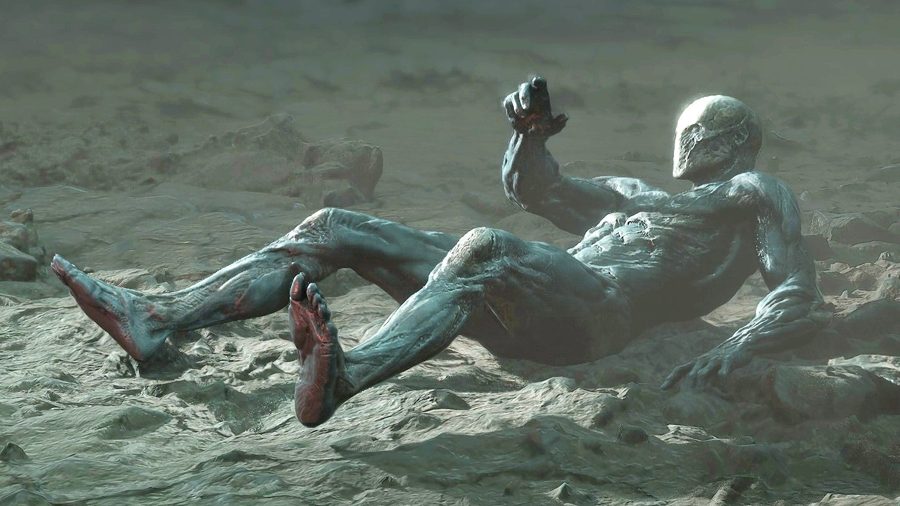
Cold Symmetry's Mortal Shell 2 has launched on PC, PlayStation 5, and Xbox Series X|S, and while many players are mastering the game's shells and levelling up, others are finding themselves killed by their own weapons. A Reddit user, xkukazu50, posted a video on August 21 showing their character being burnt to a crisp, and the culprit is a pair of default settings that make your attacks magnetically pull toward the nearest enemy. Fortunately, a few simple tweaks to the options menu can turn that frustration around.
The core issue is weapon tracking. Whenever you pull out your sidearm or swing with your primary weapon, the game's technology yanks your attacks toward the closest enemy like a vortex. That sounds helpful in theory—you want your bullets and swings to hit targets—but in practice, it can drag you into environmental hazards, explosive barrels, or groups of enemies that overwhelm you. The Reddit clip illustrates the problem vividly: the player's character is burned to a crisp because the auto-aim locked onto a hazard rather than the intended foe.
Adjusting target steering and free aim
The fix lives in the Settings menu under the "Game" tab, where you will find two crucial options: "Target Steering" and "Enable Free Aim." Target Steering is set to "Default" out of the box, which makes your melee attacks prioritise the nearest enemy you are aiming at. Changing this to "Light" or "Off" makes your melee swings much less sticky, allowing you to strike whatever you want without being sucked toward the closest enemy or environmental hazard you are looking at.
Enable Free Aim, meanwhile, is set to "No" by default, which automatically locks your reticle onto the nearest enemy you point your gun at. Switching it to "Yes" lets you aim your firearm freely without that snappy auto-lock. If you then press the right trigger while Free Aim is on, you can still lock onto a target and change your target's lock, giving you control over when you want to snap to an enemy and when you want to avoid accidentally shooting an explosive barrel or similar hazard.
Two more recommended settings
Beyond the weapon tracking adjustments, there are two other settings worth changing. The first is the "Auto Pick Up Gold" option, which can save you from having to manually collect currency dropped by enemies. The second setting is not fully detailed in available sources, but the implication is that both tweaks contribute to a smoother experience, reducing the chance of dying to avoidable mistakes.
How to get your shell back
If you do lose your strongest weapon, there is a way to recover your shell in Mortal Shell 2, though it is not a simple process. The game's design means that when you die, your shell—and the weapon attached to it—can be lost, and retrieving it requires navigating back to the spot where you fell. The exact method is not spelled out in the available sources, but it is clear that the retrieval is possible if you can survive the journey back to your death location. This adds a layer of risk and reward, as you must weigh the danger of returning to a dangerous area against the value of reclaiming your most powerful gear.
A smoother start for new players
For players just beginning their Mortal Shell 2 journey, these settings changes can make a significant difference. The default configuration is designed to help you land hits, but it can also lead to unintended deaths when the auto-aim drags you into hazards. By turning down Target Steering and enabling Free Aim, you gain finer control over your attacks, reducing the chance of being killed by your own weapons. The game's launch on PC, PS5, and Xbox Series X|S means a wide audience is now encountering these issues, and the community is already sharing tips to help each other survive the harsh world of Mortal Shell 2.